
A good Spotify Canvas strategy comes down to four decisions. Pick one simple loop that fits the mood of the song. Build it to Spotify’s specs. Put it on every release, not just the single. Then check your numbers before you change it. A Canvas won’t rescue a weak release, but it costs almost nothing and it makes the most of the screen listeners already stare at.
Below, we walk through what a Canvas is, which ideas work, how to make and upload one, and how to judge whether it’s pulling its weight.
TL;DR
- A Canvas is a 3 to 8 second vertical loop that replaces your cover art in the Now Playing view on mobile.
- Keep it to 9:16, 720 to 1080 pixels tall, MP4 or JPG, with nobody singing, rapping or talking on screen.
- One simple loop that matches the song’s mood beats a busy edit. Refresh it every few months if you have new material.
- Treat Canvas as one piece of your release plan, alongside pre-saves, playlist pitching and ads.
- Measure Canvas views in Spotify for Artists and read them next to saves, shares and listeners, not alone.
Table of Contents
- What a Canvas is and where listeners see it
- Why Canvas deserves a place in your release plan
- Canvas specs you need before you start
- Spotify Canvas ideas that fit the song
- Choose a loop type that feels smooth
- How to make, upload and test your Canvas
- Build a Canvas system, not a one-off
- Does your Canvas work? How to read the numbers
- Common Canvas mistakes
- Where Canvas fits with the rest of your release
- Our perspective
- Get the song ready for the Canvas
- FAQ
- Sources
What a Canvas is and where listeners see it
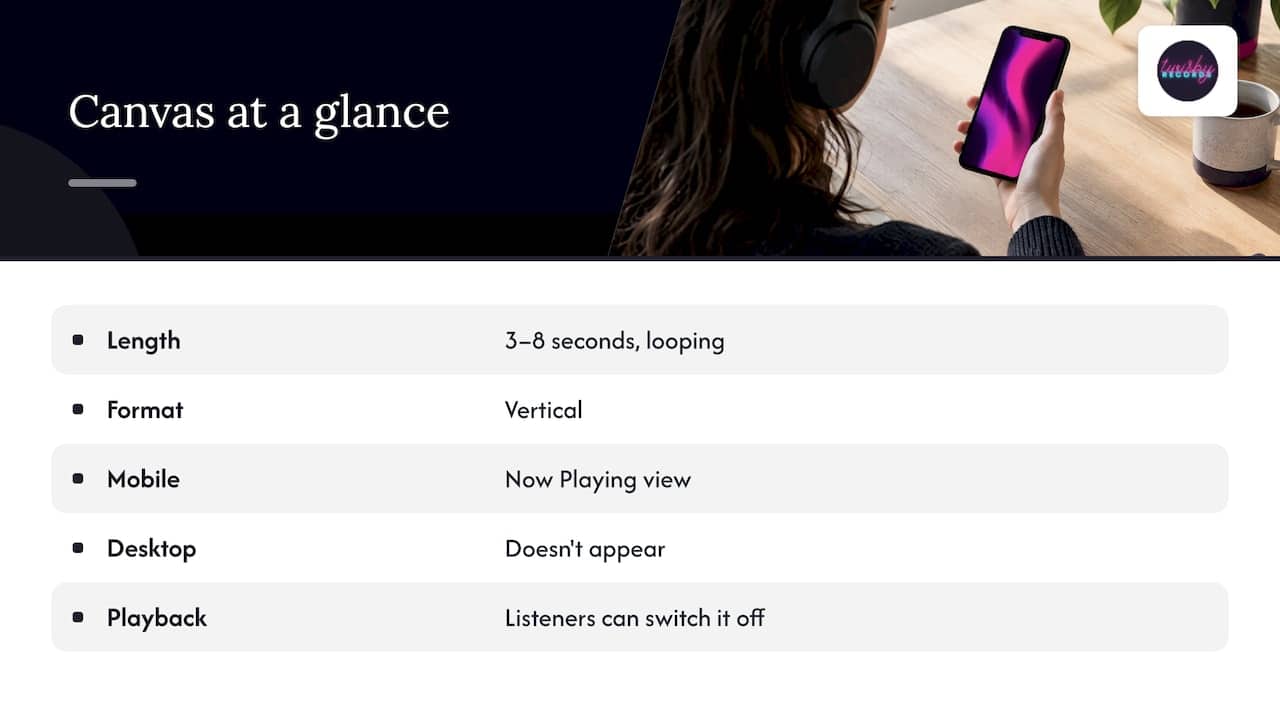
Spotify describes a Canvas as a looping visual of 3 to 8 seconds in vertical format that shows in the Now Playing view of the mobile app in place of the static album art. It doesn’t appear on desktop, and listeners can switch the feature off in their Playback settings. So you’re designing for a phone screen held in someone’s hand, often while they do something else.
That last point shapes everything. Most people play music while commuting, working out or cleaning. The Canvas is a quiet visual hook, not a music video. If it demands attention, it’s doing the wrong job.
Why Canvas deserves a place in your release plan
Your cover art is a still image. A Canvas gives the same screen motion, mood and a bit more identity, and you can change it at any time, before or after release. For an independent artist with no label art department, that’s a cheap way to make a release feel finished.
A realistic expectation matters here. Spotify counts a Canvas view when someone opens the Now Playing view and sees it, at most once per stream. That tells you how many people saw it, not what they did next. We’d rather you treat Canvas as part of the experience around the song than as a growth lever on its own. The levers that move streams are the release rollout, playlist pitching and paid promotion. Canvas helps those efforts convert attention into a polished first impression.
Canvas specs you need before you start
Spotify’s Canvas guidelines set the current requirements:
| Spec | Requirement |
|---|---|
| Length | 3 to 8 seconds, looping |
| Aspect ratio | 9:16 vertical |
| Height | 720 to 1080 pixels |
| File type | MP4 or JPG |
| On-screen content | Avoid anyone singing, rapping or talking |
The last rule isn’t cosmetic. A short loop can’t stay in sync with a vocal, so lip movement that drifts from the audio looks like a mistake. Spotify recommends avoiding it for that reason.
Two more practical notes. Keep key elements, such as a logo or text, away from the very top and bottom edges, because the app overlays controls and track info. And preview the clip in the app before you commit, since what looks balanced in your editor can feel crowded on the Now Playing screen.
Spotify Canvas ideas that fit the song
The best ideas start from the track, not from a trend. Ask what the song feels like in one image, then pick a treatment.
Abstract and textured loops
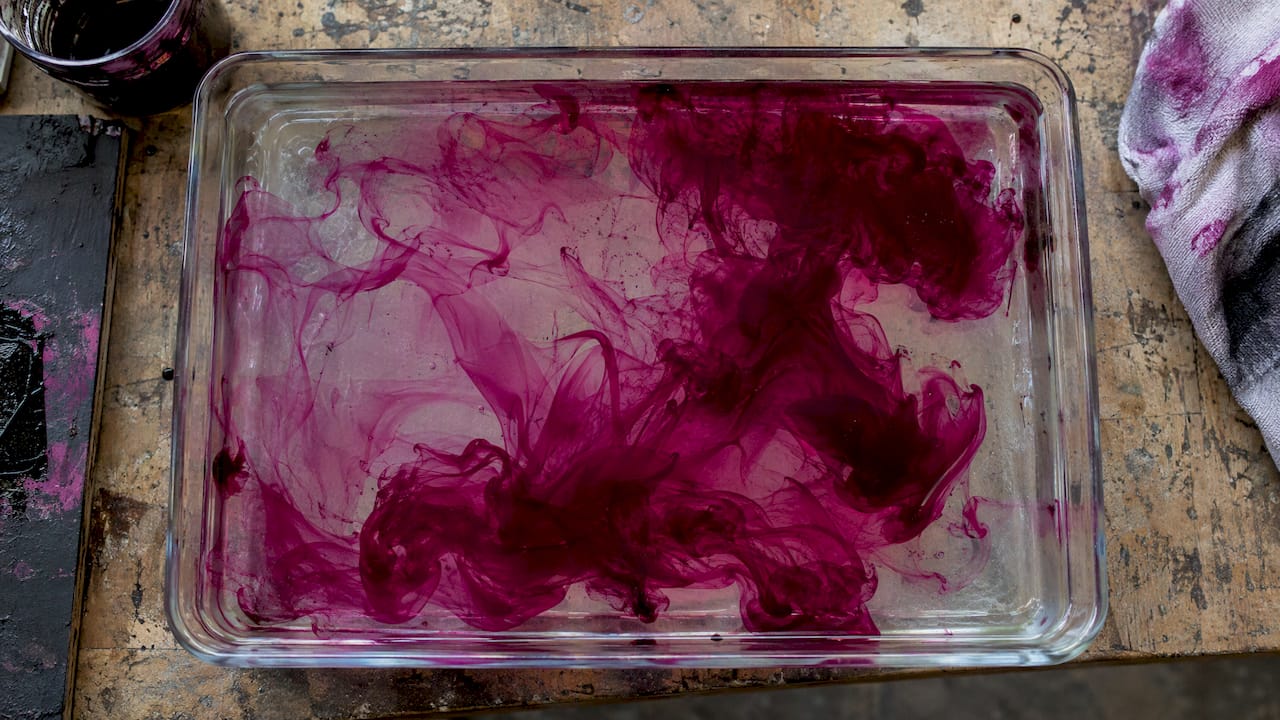
Color gradients, film grain, smoke or liquid textures are a common choice because they match a mood without competing with it. Gradients, textural footage and slow environment pans are all typical approaches. They work well for ambient, R&B, lo-fi and singer-songwriter tracks.
Animated album artwork
Subtle motion on your existing cover is the safest way to keep a release visually consistent. Let a light flicker, drift a background layer, or pulse a single color. The Now Playing screen then reads as one coherent piece.
Real-world footage
A slow pan across a street at night, rain on a window, a hand on a fader, a drive through your hometown. Shoot vertically, hold the shot steady and keep people from singing to camera. Behind-the-scenes studio footage suits artists who want fans to feel close to the process.
Matching energy to genre
- Hip-hop and trap: high-contrast cuts, city textures, bold color blocking.
- Indie and folk: natural light, handheld nature shots, warm grain.
- Electronic: geometric patterns and glitchy, rhythmic loops.
- Pop: saturated color, playful motion, clean graphics.
If you want a visual reference for building tight, repeatable footage, this breakdown of looping highlight video examples shows how short, purposeful clips are structured.
Choose a loop type that feels smooth
A Canvas replays constantly, so the join between the end and the start decides whether it feels polished. Spotify’s guidelines describe three approaches:
- Continuous loop. The last frame flows seamlessly into the first. It’s the most elegant and the hardest to get right.
- Hard cut. The clip ends and restarts with an obvious edit. Works when the visual has strong rhythm.
- Rebound. The clip plays forward and then in reverse. It’s often the easiest for beginners to make smooth.
If you’re editing on your phone and want something clean quickly, start with the rebound. Move to a continuous loop once you’re comfortable.
How to make, upload and test your Canvas
- Check who can upload. Eligible creators are the first main artist on a track, or the main artist on both the track and the release, with an Admin or Editor role in Spotify for Artists.
- Create the clip to the specs above. Export at 1080 pixels tall if your tool allows.
- Open the Music tab in Spotify for Artists on desktop or mobile, select the track, and follow the Canvas upload prompts.
- Preview it in the Spotify app on your own phone before it goes live.
- Repeat for each track. A release where the single has a Canvas and the rest show static art feels unfinished.
If an upload fails, the cause is almost always the file: wrong ratio, a length outside 3 to 8 seconds, or a height outside the range. Re-export and try again.
Build a Canvas system, not a one-off
What separates a strategy from a single upload is consistency across a catalog.
- Share a visual language. Use the same palette, grain or typography across a release so the project looks like one body of work.
- Make each Canvas different enough. Variations on a theme keep the album page interesting when someone moves from track to track.
- Refresh on a schedule. New visuals every few months give fans a reason to revisit a song, and you can swap a Canvas without touching the audio.
- Tie it to your socials. The same footage can become a Reel or Story teaser. Our guide to testing shares and saves on Instagram covers how to run that over two weeks.
- Plan it early. Build the Canvas while the master is being finished, so it’s ready on release day. Our 90 day music ad timeline shows where visual assets fit between mastering and ads.
Does your Canvas work? How to read the numbers
Canvas reports one thing directly: views. Because Spotify counts a view whenever someone sees it in Now Playing, a track can show more Canvas views than streams. That is normal, since a stream only counts after 30 seconds of listening.
So don’t judge a Canvas on views alone. Here is a simple way to evaluate it:
- Note the date you add or change it.
- Pull a baseline of saves, listeners, shares and streams per listener for the two weeks before.
- Compare the two weeks after, keeping your promotion steady. If you launch an ad campaign the same week, you can’t attribute the change to the visual.
- Change one thing at a time. One new Canvas per track, then wait.
- Decide. If saves and shares hold or rise, keep it. If nothing moves after a full cycle, try a different mood or a simpler loop.
Our breakdown of Spotify for Artists analytics explains which of those metrics matter most and how to read them together. Be patient with small catalogs: a few hundred listeners won’t produce clean conclusions, so compare trends over several releases.
Common Canvas mistakes
- Someone singing on camera. The loop can’t match the vocal.
- Too much motion. Fast cuts and flashing effects fight with the song.
- Text-heavy visuals. Small lettering is hard to read at a glance, and it can sit under the app’s controls.
- Low-resolution footage. Stretched or pixelated clips undercut a well-mastered song.
- Ignoring the track. A beautiful clip that doesn’t match the mood still feels off.
- Set and forget. A year-old Canvas on a song you’re still promoting is a missed refresh.
Where Canvas fits with the rest of your release
A Canvas works best when people are already arriving. That means a release plan: pre-saves before launch, a pitch to editorial playlists, and a way to reach new listeners. Start with our Spotify pre-save campaign guide, then see how a 48 to 72 hour launch can help algorithmic playlists notice the track. When you’re ready to send paid traffic, a step-by-step two week Facebook ads plan for musicians gives you a framework to follow. For wider ideas, see how to increase Spotify streams as an indie artist.
The first thing a new listener experiences is the sound, though. A Canvas dresses up a song, but the mix and master carry it.
Our perspective
We’ve spent over 35 years around music, and the pattern is consistent: independent artists put hours into a visual and then upload a track that isn’t ready for streaming. Listeners decide in seconds. If the vocal sits wrong or the loudness is off next to everything else in their playlist, no loop on the screen saves it.
That’s why we work on the audio first. Our engineers handle mixing and mastering by hand with real analog gear, and we’re an Apple Digital Masters certified shop. Each project is personal, with room for creative collaboration, because your song isn’t the same as the last one we worked on.
Then comes the part most artists struggle with: getting the song heard. We run targeted Facebook and Instagram campaigns for releases, including audience research, custom landing pages and reporting. A Canvas fits in neatly. It’s the finishing touch on a release that sounds right and is reaching the right people.
Kreg
Get the song ready for the Canvas
If your track is mixed and mastered, your visual is ready and you want people to hear it, we can help with the rest. Mastering is a $50 one-off per track. Our advertising packages start with a $99 one-time onboarding fee, then the Standard Package is $25 per month plus a 20% adspend fee. Mixing and recording are quoted per project.
See mastering, mixing, recording or our advertising packages, or start from Twisby Records.
FAQ
How long should a Spotify Canvas be?
Spotify’s guidelines call for a loop of 3 to 8 seconds. In practice, a short clip that loops cleanly looks better than a longer one with a visible seam. Pick the length that lets the motion reset naturally.
Can I show myself singing in a Canvas?
Spotify recommends avoiding footage of anyone singing, rapping or talking, because a short loop can’t stay in sync with the audio. Show yourself doing something else instead, such as walking, playing an instrument without a vocal sync, or a close-up of your hands.
Can I change my Canvas after the song is released?
Yes. You can update or swap the Canvas in Spotify for Artists at any time, before or after release. That makes it easy to refresh a song every few months while you’re still promoting it.
Why can’t I see my Canvas on desktop?
Canvas appears in the Now Playing view of the mobile app only. Listeners can also turn it off in their Playback settings, so some people will never see it.
Who can upload a Canvas?
The first main artist on a track, or the main artist on both the track and release, can add one, provided they have an Admin or Editor role in Spotify for Artists.
Sources
- Canvas guidelines, Spotify for Artists
- Adding a Canvas to Spotify, Spotify for Artists
- How we count Canvas views, Spotify for Artists
- Spotify Canvas and Clips FAQ, Spotify Community
- Spotify Canvas: Specs, Upload Steps, and Ideas
- 6 Sizzle Reel Examples and a 6 Step Checklist