
Send your mix to mastering at the sample rate you recorded and mixed at, in 24-bit WAV. For most independent music that means 44.1 kHz or 48 kHz. Don’t convert up to a bigger number hoping it will sound better, because it won’t. Below we explain why, where higher rates do help, and what Spotify and Apple Music accept.
I’ve mastered and mixed for independent artists for decades, and this question comes up constantly. The answer is calmer than the internet makes it sound.
TL;DR
- Bounce your mix at the session’s native sample rate. Don’t convert on the way out.
- 44.1 kHz at 24-bit is a safe default for music. 48 kHz is fine if the project began there or is tied to video.
- Upsampling a file to 96 kHz or 192 kHz adds no information. It only makes a bigger file.
- Spotify and Apple Music both accept 44.1 kHz or higher, so your master isn’t locked out of either at a standard rate.
- If you’re unsure, tell your mastering engineer what your session settings are and ask before you export.
Table of Contents
- The short answer: match your session
- What a sample rate actually is
- Common sample rates and when each fits
- Do higher sample rates make a master sound better?
- Why upsampling before mastering backfires
- Should you send mastering the rate you mixed at?
- What streaming platforms accept
- Our perspective on sample rate and mastering
- Common mistakes to avoid
- Get your mix mastered by people who check the details
- FAQ
- Sources
The short answer: match your session
The best sample rate for mastering is the one your mix already lives at. If you tracked and mixed at 44.1 kHz, bounce at 44.1 kHz. If the project ran at 48 kHz, bounce at 48 kHz. That is the same advice iZotope’s digital audio guide gives: keep the final master at the rate you recorded, mixed and mastered at, unless distribution requires something different.
The reason is simple. Every sample rate conversion is a processing step. Done well, it is nearly invisible. Done carelessly, it can add artifacts. The cleanest conversion is the one you never make.
As for what to pick if you are starting a project from scratch: The Pro Audio Files recommends supplying 24-bit WAV at 44.1 kHz or higher for mastering. It also says a higher-rate native master can be worth supplying for high-resolution streaming, but it does not recommend exporting at an arbitrarily high rate like 192 kHz.
We cover the recording side of this decision in our guide to choosing a sample rate for recording. This article is about what happens once the mix is done.
What a sample rate actually is
Sample rate is how many times per second a digital system measures the audio signal. It is expressed in hertz, or kilohertz for the numbers you see in a DAW: 44.1 kHz means 44,100 measurements every second.
The rate sets the highest frequency the file can represent. Under the Nyquist requirement, you need to sample at more than twice the highest frequency you want to capture. Human hearing tops out around 20 kHz, and Apple’s Digital Masters document explains that 44.1 kHz is adequate to represent that range. That is why CD audio, which Apple describes as 16-bit/44.1 kHz, became the long-running standard for music.
Sample rate is separate from bit depth. Bit depth governs dynamic range and the noise floor. For mastering, send 24-bit. Our deeper walkthrough, sample rate and bit depth decoded, covers that side.
Common sample rates and when each fits
| Sample rate | Typical use | When to send it to mastering |
|---|---|---|
| 44.1 kHz | Music production, CD, streaming | Your session is at 44.1 kHz. This is the default for most independent releases. |
| 48 kHz | Video, film, broadcast, many modern interfaces | The session started at 48 kHz, or the song is going to picture. |
| 88.2 kHz | Higher-resolution music workflows | You tracked and mixed there on purpose, and it is a clean multiple of 44.1. |
| 96 kHz | High-resolution audio, some processing-heavy workflows | You tracked and mixed there on purpose. |
| 176.4 / 192 kHz | Archival and specialty work | Only if the whole session is native at that rate. |
Notice the pattern in the right-hand column. Every row says the same thing: send what the session already is.
iZotope describes 44.1 kHz at 24-bit as standard for much music production and 48 kHz as often preferred for video. If you make music for YouTube videos, The Pro Audio Files notes that 48 kHz is commonly used there, and the practical goal is to match your video editor’s working rate and avoid unnecessary conversions.
Do higher sample rates make a master sound better?
Not automatically. SonicScoop’s technical analysis explains that 44.1 and 48 kHz theoretically cover the audible spectrum, and that higher rates don’t inherently increase fidelity within it.
That doesn’t mean higher rates have no role. The same analysis describes them as an engineering tradeoff:
- Somewhat higher rates can ease the design of anti-aliasing filters.
- They may help certain kinds of processing.
- Poorly filtered very-high-rate material can introduce intermodulation distortion.
- Converter quality and engineering skill matter more than the number on the box.
In practice, that last point is the one I’d underline. A well-tracked, well-mixed session at 44.1 kHz will beat a sloppy one at 96 kHz every time. If you want a broader look at what a mastering environment contributes beyond file specs, this overview of what a mastering studio does is a good companion.
Higher rates earn their place when a session was built there from the start, or when a mastering engineer’s processing chain benefits from working at a higher internal rate. In both cases, the decision is made by the engineer based on the material, not by upsampling the file before it arrives.
Why upsampling before mastering backfires
Here is the mistake we see most. An artist hears that bigger numbers are better, so they convert a 44.1 kHz mix to 96 kHz, or a 16-bit file to 24-bit, before sending it in.
Apple is direct about this in its Digital Masters document: upsampling does not recover or add information, and it warns against bit-padding a 16-bit file into a nominal 24-bit file.
Think of it as enlarging a photo. The file gets bigger. The detail does not. You’ve also added a conversion step, and you’ve labeled the file as something it isn’t. A mastering engineer who sees a 96 kHz file can reasonably assume it was captured and mixed there. If it wasn’t, that assumption can lead to the wrong decisions about processing.
The rule runs in one direction only. Going to a higher rate than you worked at gains nothing. Going to a lower rate is a conversion that should happen once, at the very end, by the person making the final deliverables.
Should you send mastering the rate you mixed at?
Yes. This is the question I get most from artists, and the answer holds for nearly every case.
- Check your session. Open your DAW’s project settings and read the sample rate. Don’t guess from memory.
- Check the bit depth. Export at 24-bit, or 32-bit float if your engineer asks for it.
- Bounce without a limiter or master bus loudness processing. Leave headroom, with peaks well below 0 dBFS, so the mastering engineer has room to work.
- Export WAV. Don’t send MP3s or files already converted for streaming.
- Name the file with the rate. Something like “SongTitle_Mix_24bit_44k1.wav” saves a back-and-forth email.
- Send stems or alternates only if asked. Otherwise, one stereo mix is the standard.
If your song includes samples or loops that came at a different rate, your DAW converts them to the session rate on import. That’s fine. What matters is that the session itself has one clear rate and you export at it.
If your work was a mix of rates because of how you collaborated, say so in your notes. A line like “tracked at 48 kHz, vocals added remotely” tells the mastering engineer what they’re working with.
What streaming platforms accept
The fear behind a lot of sample rate questions is that a platform will reject your file or degrade it. Check the delivery specs and that fear fades.
Spotify. Spotify’s U.S. support page asks for the highest-quality native stereo master at 44.1 kHz or higher, keeping the original sample rate and bit depth. Use 24-bit when that is your native master, and 16-bit only if no higher-bit-depth master exists. The same page says FLAC is strongly preferred, and WAV is accepted when it meets the same technical requirements.
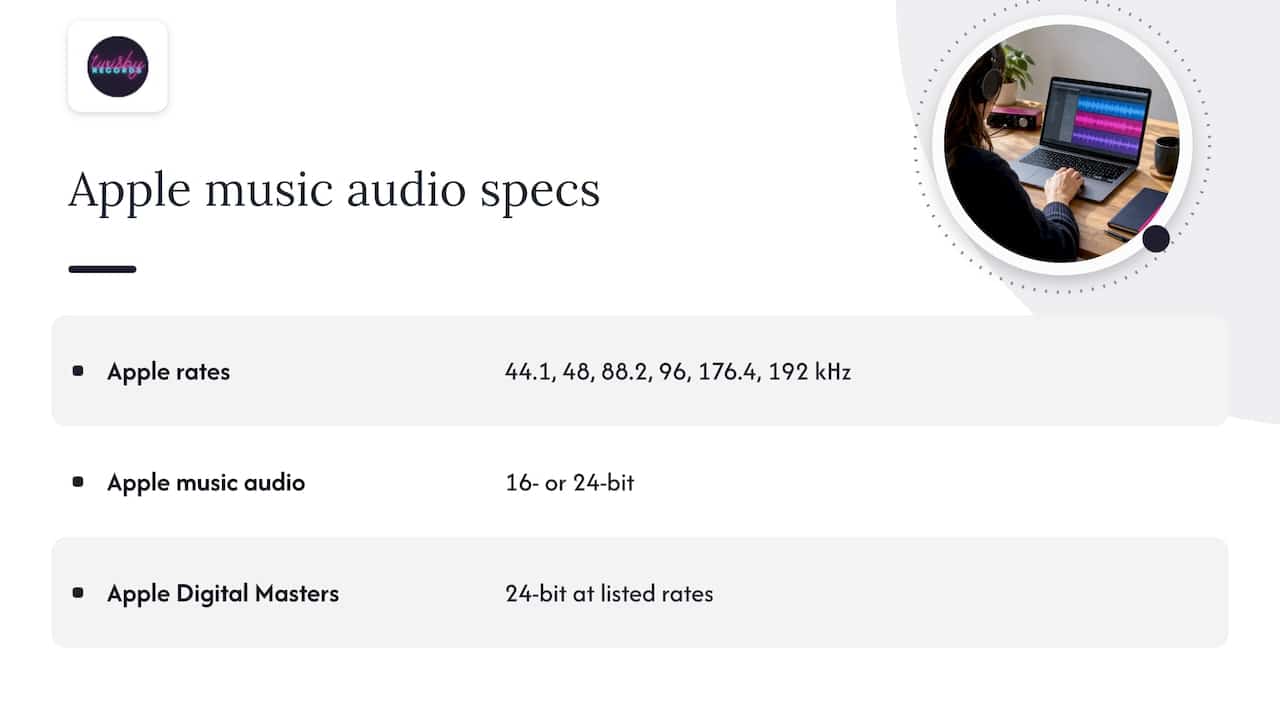
Apple Music. Apple’s Video and Audio Asset Guide (version 5.3.19, 2026) says music audio can be supplied at 44.1, 48, 88.2, 96, 176.4 or 192 kHz, in 16- or 24-bit. Apple Digital Masters require 24-bit at one of those rates.
Apple’s Digital Masters document also recommends sending the highest native-resolution master you have, so its encoders and future high-resolution systems can work from the original source. “Native” is the key word again. It does not say to inflate a file.
YouTube and video. Match the video editor’s working rate, which is commonly 48 kHz, so nobody converts twice.
The takeaway: a standard 44.1 or 48 kHz, 24-bit master meets the stated requirements for both major music platforms. To go deeper on delivery, see our guides on mastering for Spotify and Apple Digital Masters requirements.
Our perspective on sample rate and mastering
Artists often arrive worried they picked the “wrong” sample rate and that mastering can’t fix it. In almost every case they didn’t, and it can.
After more than 35 years in audio, our view is that the sample rate is a setup decision, not a quality lever. What shapes the final sound is the tracking, the mix balance and the ears and gear in the mastering chain. That is why our work is personalized and handled by experienced engineers using real analog gear, rather than a one-size-fits-all preset or an automated process.
When a mix arrives, we look at what the session really is, and we deliver masters that suit where the song is going. That includes Apple Digital Masters, which we are certified for, so your release can be ready for Apple Music’s requirements.
If you aren’t sure what you’re sending, just ask. A thirty-second question about your session settings costs nothing and prevents most file problems before they start.
Kreg
Common mistakes to avoid
- Exporting at 192 kHz “to be safe.” It isn’t safer. It’s a larger file with no added information when the session wasn’t built there.
- Changing the project rate mid-session. Switching rates after recording can trigger conversions you didn’t intend. Pick a rate before you hit record.
- Sending a 16-bit file labeled as 24-bit. Apple specifically warns against bit-padding.
- Dithering or converting before mastering. Leave dither and final format conversion for the last step, which belongs to mastering.
- Sending an MP3 “just for reference” as the master. Lossy files aren’t masters. Send the WAV.
- Ignoring where the song is going. If it’s headed to video, agree on the rate with the editor first.
One more point. If you plan to mix your own tracks, our guide on mixing for streaming helps you keep punch and headroom before the file ever reaches mastering.
Get your mix mastered by people who check the details
If you’d like a second set of ears on your session settings and a master prepared for streaming, we can help. Our mastering service is $50 one-off, and it comes with personalized attention from an experienced engineer and a focus on fast turnaround and creative collaboration.
If the mix itself needs work first, see our mixing service or request a mix quote. Not sure what mastering will do for your track? Start with what audio mastering is, or read how to choose a mastering engineer.
FAQ
What sample rate do I need for mastering?
Use the sample rate your session already runs at, usually 44.1 kHz or 48 kHz, exported as a 24-bit WAV. Spotify asks for 44.1 kHz or higher, and Apple accepts rates from 44.1 to 192 kHz. A standard rate meets both requirements.
Is 24-bit 192 kHz audio good quality?
It can be, if the whole session was recorded and mixed at that rate with good converters. If a file was simply upsampled to 192 kHz, it contains no more information than the original. Quality comes from the source and the engineering, not the number.
Should I convert my 44.1 kHz mix to 48 kHz or 96 kHz before mastering?
No. Conversion adds a processing step and no new detail. Send the file at its native rate and let your mastering engineer handle any final conversions needed for specific platforms.
Does a video release change the sample rate I should use?
Often, yes. Video workflows commonly run at 48 kHz, so match your editor’s working rate. If you also release the audio on music platforms, your mastering engineer can supply the right versions for each destination.
Does mastering at a higher sample rate help Apple Digital Masters?
Apple Digital Masters require 24-bit at one of Apple’s accepted rates, and Apple recommends submitting the highest native-resolution master you have. If your session is native at 44.1 kHz, that is your highest native rate. Our guide on how to get Apple Digital Masters walks through the process.
Sources
- Apple Digital Masters document (Apple)
- Apple Video and Audio Asset Guide (Apple)
- Audio file formats for Spotify (Spotify)
- The Mastering Guide to Audio Formats and Delivery Mediums (The Pro Audio Files)
- The Science of Sample Rates (SonicScoop)
- Digital audio basics: audio sample rate and bit depth (iZotope)