


Send stems unless the engineer specifically asks for your full session. Stems import into any DAW without compatibility problems, while a full session only works cleanly if your engineer uses the same software and plugins you do. Whichever you choose, export at 24-bit WAV, keep the native sample rate, and turn normalization off. Confirm the recipient’s preference before you export anything: that one question saves you a redo.
TL;DR:
- Send stems if the engineer does not use your exact DAW, plugin versions, or requires faster turnaround times, as full sessions only work with identical setups.
- Export stems at 24-bit WAV, keep the native sample rate, normalize off, and verify playback in a new session to ensure no missing tails or routing errors.
- Use a dedicated file transfer service for large projects to preserve quality, add password protection, and confirm successful download with the recipient.
- Include a manifest file with song details, BPM, key, stem descriptions, and reference levels to prevent clarification emails and reduce revision cycles.
- Build a portable, self-contained session copy with consolidated files and cross-version compatibility to avoid missing clips or offline regions during transfer.
Table of Contents
- Deciding which to send: session vs stems
- How to prepare stems that import cleanly every time
- Preparing a portable full-session copy when it’s requested
- Delivery and transfer best practices
- What to include with your files
- Pro checklist and common pitfalls
- A simple workflow that saves revision cycles
- Twisby Records services and how to request a quote
- Sources
- FAQ
Deciding which to send: session vs stems
Before you export a single file, ask the engineer one direct question: do they need your plugin settings, automation, or MIDI data, or just clean audio to work with? That answer decides everything else.
A full session makes sense when the recipient uses your exact DAW and plugin set, and when you want them to hear your rough mix decisions as a starting point. Full project folders let a mixer see your automation and settings, which speeds up revisions if the same tools are on both ends. The catch is that a missing plugin or a different session version can break the whole file.
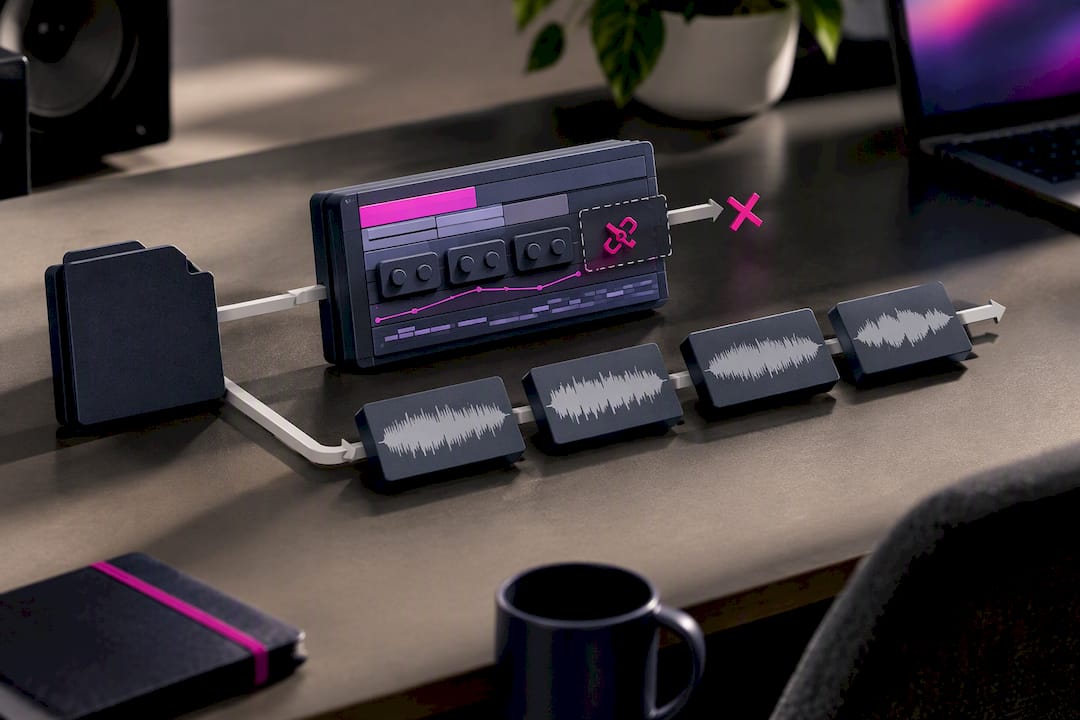
Stems avoid that problem entirely. They are universal, smaller to manage, and safer if you would rather not share your entire project with someone outside your studio.
Run through this quick checklist:
- Does the engineer use your exact DAW and plugin versions? If not, send stems.
- Do you need them to hear specific automation or processing choices? If yes, a session (or printed wet stems) helps.
- Is turnaround speed a priority? Stems are faster to prepare and import.
- Are you concerned about sharing proprietary sounds, samples, or your full arrangement? Send stems.
- When in doubt, ask. A thirty-second message beats an hour of troubleshooting later.
How to prepare stems that import cleanly every time
Once you know stems are the right call, the goal is simple: every file should drop into a fresh session and play back exactly as it did in yours.
- Consolidate every track so each stem starts at the same timeline point, typically bar 1, and runs the full length of the song, including tails and silence at the start.
- Decide between grouped stems and individual track-outs. Grouped stems (drums, bass, vocals, and so on) are faster for quick mix passes; full track-outs give a mixer more control.
- Route and print bus or aux returns if you want the stems to sound “as heard” in your rough mix. In Logic Pro, this typically means routing to a print track or using Track Stacks and print workflows since a single-menu export can miss shared aux sends. Ableton users can enable “Include return and master effects” in the export dialog to capture the same processing.
- Set your export specs: WAV or AIFF, 24-bit, your session’s native sample rate (44.1kHz or 48kHz), interleaved stereo unless a track is intentionally mono. Normalize should be off, and dither only applies if you are reducing bit depth.
- Name files clearly, using a pattern like
01_Drums_SongTitle_24bit_48k.wav, and place everything inside one folder with a matching structure the recipient can open without guessing. - Verify before sending. Import the exported folder into a brand new project and compare it against your reference mix for timing, missing tails, or routing gaps, a step confirmed useful by independent stem-export workflows.
Pro Tip: Solo each stem after export and scrub to the very end. Silent tails and clipped reverb decays are the most common reason mixers send files back.
Preparing a portable full-session copy when it’s requested
If the engineer specifically asks for your session, the move is to build a portable, self-contained copy rather than handing over your working project.
- Use your DAW’s Save Copy In or Collect Files function, which gathers only the audio actually used in the timeline and consolidates clips into one folder. Avid recommends checking “Audio Files” during this process so nothing gets left behind.
- Skip system-level plugin folders unless the recipient asked for them specifically. Note any third-party plugins you used in your README so they know what’s missing if a plugin doesn’t transfer.
- Set the session to an older format or version if your recipient runs a previous release of the DAW, and only include AAF or OMF exports if they’ve requested that format.
- Before sending, dismount your original drives and open the copy on its own. Scroll through the timeline looking for offline or missing regions, then play the whole thing through once to confirm it’s complete.
That last step catches the majority of broken transfers before they ever leave your hands.
Delivery and transfer best practices
How you send the files matters almost as much as how you prepare them. Email attachments and messaging apps often recompress audio or cap file sizes, which can quietly degrade a 24-bit WAV before it even reaches the recipient.
- Use a dedicated file-transfer service or cloud storage provider built for audio, since these tools preserve folder structure and send files without recompression, keeping the transfer bit-perfect.
- Add password protection and an expiration date to your share link, and send a short message letting the recipient know the files are on the way.
- For very large multitrack projects, a physical drive handoff is still a reasonable option, particularly for local sessions or in-person handoffs.
- Ask the recipient to confirm file count and total size after download, a quick check that catches a failed or partial transfer before it costs you a day of back-and-forth.
What to include with your files
A folder of stems without context forces the engineer to guess, and guessing leads to revision requests. A short manifest file solves that.
Include:
- Song title, version number, and export specs (sample rate, bit depth).
- BPM and key, plus a full list of stem names.
- Notes on which stems are wet versus dry, and which file is the reference mix.
- A short list of plugins or outboard gear used, along with any unusual routing.
A clear reference level matters more than most producers realize. State it plainly, something like “reference mix peaks at negative 3 dBFS,” so the engineer knows what level relationship to expect between your rough mix and the raw stems. A README file that lists these specs alongside song title, BPM, and key cuts down on clarifying emails before mixing even starts.
Pro checklist and common pitfalls
Most delivery problems trace back to a handful of repeat mistakes: missing clips, stems that don’t start at the same bar, aux returns that never got printed, hidden playlists left active, or a session format the recipient’s DAW can’t open.
Run this before you hit send:
- Consolidate every stem to a shared start point.
- Reimport and test-play the exported folder.
- Confirm file names follow your convention.
- Attach the README or manifest.
- Zip the folder and, for large projects, generate a checksum to confirm nothing corrupted in transit.
Twisby Records has spent over 35 years working with independent artists and holds Apple Digital Masters certification, and the same file problems show up again and again: a missing tail, an unprinted reverb return, a session saved in a newer DAW version than the recipient owns. Catching these before you send saves both sides a round trip.
A simple workflow that saves revision cycles
The process that causes the fewest headaches is short: agree on what’s needed, export it correctly, verify it plays back clean, then transfer it. Most delivery problems come from skipping the verification step, not from bad exports. A clear manifest removes most of the guesswork that leads to a second or third round of revisions.
— Kreg
Twisby Records services and how to request a quote
Once your stems are clean, named, and verified, the next step is getting them in front of someone who can turn them into a finished record. Twisby Records offers Mixing and Mastering for $50 one-off, along with Standard and Premium advertising packages for artists ready to promote a release.

- Send your stem folder, README, and reference mix together when you request a quote.
- Every project receives personalized attention from an engineer rather than an automated process.
- Experienced engineers aim to provide a quick turnaround for every mix.
Ready to hand your files to someone else? Request a mix quote and attach your prepared folder to get started.
Sources
For deeper, DAW-specific steps, see Pro Tools export documentation, Logic Pro’s export guide, and Ableton’s stem instructions. For a practical, producer-written checklist, Aubiomix’s export guide covers similar ground from a working engineer’s perspective.
- How to Export Individual Tracks in Pro Tools
- Session portability and archiving tips — Avid Knowledge Base
- Export tracks as audio files in Logic Pro — Apple Support
- Send audio files (WAV, FLAC, stems) without recompression – TransferNow
FAQ
How do I send stems to someone?
Export each track or group as 24-bit WAV at your project’s native sample rate with normalization off, then place the files in a clearly named folder with a short README describing tempo, key, and reference mix. Upload the folder to a file-transfer service that preserves folder structure, such as the options described by TransferNow, rather than emailing individual files.
Is it better to mix with stems or a two-track beat?
Stems give a mixing engineer control over each individual element, which almost always produces a stronger result than a finished two-track mix. A two-track file locks in level and processing decisions the mixer can no longer adjust, so stems are the standard choice whenever a proper mix is the goal.
How do I send a Pro Tools session?
Use Save Copy In and check the Audio Files option so only the audio used in your timeline gets collected into one portable folder. Before sending, dismount your original drives and open the copy independently to confirm there are no offline regions.
Where can I get free stems?
Free stems are typically shared by artists or producers directly for remix or collaboration projects rather than through a single official source, so availability depends on the specific artist or platform involved. Always check the license terms attached to any free stem pack before using it in a release.